Contents |
|
|
|
|
|
|
|
|
|
|
|
|
|
| Fonts, Anti-Aliasing and Graphics2D | |
|
|
So far, we have written purely text-based programs. Now we want to create graphics. It's not difficult to open a graphics window .
import javax.swing.*;

public class Test
{
    public static void main (String args[])
    {
        JFrame F = new JFrame("Test Frame");
        F.setDefaultCloseOperation(JFrame.EXIT_ON_CLOSE);
        F.setSize(600, 600);
        F.setLocationRelativeTo(null);
        F.setVisible(true);
    }
}
The program initially displays only an empty window. However, the window can already be moved, resized, maximized, or closed. You can monitor the closing of the window and all other operations yourself. Currently, it's simpler to set the `CloseOperation` .
The window's position is set to zero, centering the screen. This should only be done after the window has reached a suitable size. The window will only appear when `setVisible(true)` is called.
Note the imports. We're simply importing all classes from java.swing .
We now want to draw a string in the window. One could simply have the string drawn in the main function.
import java.awt.*;
import javax.swing.*;

public class Test
{
    public static void main (String args[])
    {
        JFrame F = new JFrame("Test Frame");
        F.setDefaultCloseOperation(JFrame.EXIT_ON_CLOSE);
        F.setSize(600, 600);
        F.setLocationRelativeTo(null);
        F.setVisible(true);

        Graphics G = F.getGraphics();
        G.drawString("Hello!",300,300);
    }
}
For drawing, we need the classes in java.awt , which we import separately.
The program just shown doesn't work reliably! The word "Hello!" might even appear on some systems. However, the window isn't redrawn if it's briefly obscured by another window.
Therefore, a completely different programming style must be developed. A program with a graphical user interface is controlled by events . One of these events is the request to redraw the window. The simplest way to comply with this request is to override the `paint` method of `Frame` or `JFrame`. This requires a child class.
import javax.swing.*;
import java.awt.*;

class MyCanvas extends Canvas
{
    @Override
    public void paint (Graphics g)
    {
        int w = getWidth(), h = getHeight();

        g.setColor(Color.gray.darker());
        g.fillRect(0, 0, w, h);

        g.setColor(Color.gray.brighter());
        g.fillRect(20, 20, w - 40, h - 40);

        g.setColor(Color.red.darker());
        g.setFont(new Font("SansSerif", Font.PLAIN, 20));
        g.drawString("Hello!", w / 2 - 40, h / 2);
    }
}

class TestFrame extends JFrame
{
    public TestFrame()
    {
        super("Test Frame");
        setDefaultCloseOperation(JFrame.EXIT_ON_CLOSE);
        add(new MyCanvas());
    }

}

public class Test
{
    public static void main (String args[])
    {
        JFrame F = new TestFrame();
        F.setSize(600, 600);
        F.setLocationRelativeTo(null);
        F.setVisible(true);
    }
}
Here are some explanations of the event-driven programming style and the Swing elements used.
In the main program `main`, we create a TestFrame , which is a child of `JFrame` . We simply set its size and position, and then start displaying this window.
The TestFrame class is a JFrame to which we have added MyCanvas , a canvas (a drawing area). The layout is such that this canvas occupies the entire area of the window.
The MyCanvas class now has a `paint` method that overrides Canvas 's default redraw routine . It is called every time the window needs to be redrawn. To do this, it receives a `Graphics` object to work with.
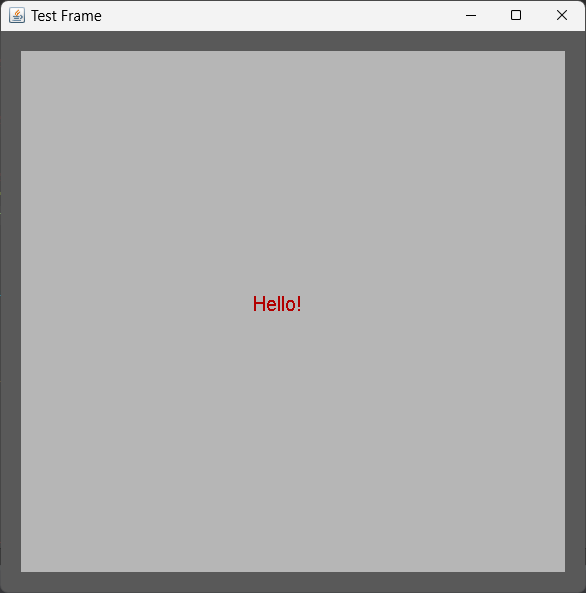
In Paint, we first determine the size of the canvas. Then, we color the entire area dark gray and an inner rectangle gray, with a 20-pixel border. In the center (shifted 40 pixels to the left), we draw red text in a 20-pixel font.
The `paint` method is called when the window opens because redrawing is necessary. However, this can be done with...
repaint();
You can force a redraw yourself at any time. This doesn't directly call paint, but rather generates an event indicating that a redraw is necessary. The system then initiates the redraw.
Now we can create more complex drawings by changing the paint method. An example is...However, this color effect only becomes apparent on systems with a sufficient number of colors.
class MyCanvas extends Canvas
{
    public void paint (Graphics g)
    {
        Dimension d = getSize();
        int w = d.width, h = d.height;
        int i = 0;
        Color C;
        while (i <= w - 1 - i && i <= h - 1 - i)
        {
            // Obtain new color:
             if (2 * i < 256)
                C = new Color(2 * i, 255 - 2 * i, 255);
            else
                C = new Color(255, 0, 255);
            g.setColor(C); // set color
            g.drawRect(i, i, w - 1 - 2 * i, h - 1 - 2 * i);
            i++;
        }
    }
}
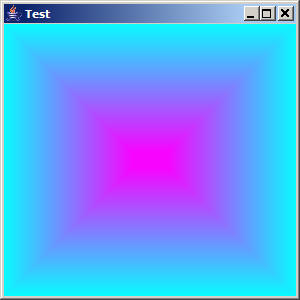
The color model used here creates colors from their red, green, and blue components. From the outside in, red decreases and green increases. At the very center, the color becomes pink (a mixture of red and blue). The color components can be specified as integer values in the range 0 to 255 or as float values in the range 0.0 to 1.0.
The program generates the following graphic:
This program draws quickly enough to be considered an interactive application. If redrawing the window takes too long, other techniques should be used. In this case, Paint's event handling is blocking the program's entire event processing.
It is also possible to add multiple elements to a window. In this case, however, you must configure the arrangement (layout) of the elements. Java uses instances of special classes for this task, called layout managers.
In the following example, we'll use a BorderLayout. This layout has north, south, east, and west elements, and a central element that takes up most of the space. You don't need to use all of these elements. As an example, we'll create the following window.
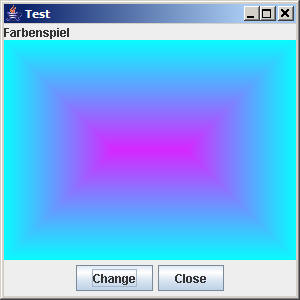
In the north, there is a JLabel component containing the text "Farbenspiel" (Color Play). In the south, we have a JPanel component containing two JButton components . Some components, like JPanel, serve only to hold other components.
We are simply replacing the TestFrame class .
class TestFrame extends JFrame
{
    public TestFrame()
    {
        super("Test Frame");
        setDefaultCloseOperation(JFrame.EXIT_ON_CLOSE);

        // Set layout:
        setLayout(new BorderLayout());

        // The label is at the top:
        JPanel north = new JPanel();
        north.add(new JLabel("Farbenspiel"));
        add("North", north);

        // The colors are at the center:
        add("Center", new MyCanvas());

        // The buttons are at the bottom:
        JPanel south = new JPanel();
        south.add(new JButton("Change"));
        south.add(new JButton("Close"));
        add("South", south);
    }

}
As you can see, you only need to obtain an instance of BorderLayout and set it up as the layout manager (using setLayout()). You also pass a string specifying the alignment to the add() method, which every component has. The MyCanvas class remains unaffected by all of this.
The buttons aren't doing anything yet.
There are other layout managers as well. GridLayout is easy to use . Its constructor requires a number of rows and columns, and the components are simply arranged into a rectangular matrix. If the number of rows is 0, the number of components passed determines the row count. Here's an example.
import javax.swing.*;
import java.awt.*;
public class Test
{
    public static void main (String args[])
    {
        JFrame F = new JFrame();
        F.setTitle("Test");
        F.setDefaultCloseOperation(JFrame.EXIT_ON_CLOSE);
        F.setPreferredSize(new Dimension(400,100));
         // Set layout:
        F.setLayout(new GridLayout(0, 2));
        F.add(new JLabel("Text 1: "));
        F.add(new JLabel("High"));
        F.add(new JLabel("Text 2: "));
        F.add(new JLabel("Second line"));
         // Packing:
        F.pack();
        F.setLocationRelativeTo(null);
         // Show:
        F.setVisible(true);
    }
}
The `pack()` method, which was called here, ensures that the window is just large enough to display all its components. However, `setPreferredSize()` takes into account if the window size is larger.
GridBagLayout is a slightly more complex layout manager. It essentially arranges components in rows and columns, but with varying grid sizes. Furthermore, a single component can span multiple rows and columns. In my experience, this manager is rarely needed.
There is also the CardPanel, which arranges all components on top of each other, with only one visible at a time.
Finally, you can also arrange the components yourself. To do this, you can simply override the `doLayout` method of the components and define the layout of the contained components within that method (using `setLocation` and `setSize`).
The font of components is changed using `setFont` . To do this, you obtain a new font and set it. The font is specified by its font name, font type (PLAIN, BOLD, ITALIC), and font size.
String[] fonts=Toolkit.getDefaultToolkit().getFontList();
You can print out a list of all available fonts. For a JLabel, you set the font as follows, choosing twice the size of the currently selected font.
JLabel label=new JLabel("Text 1: ");
label.setFont(new Font("Dialog",Font.BOLD,l.getFont().getSize()*2));
The same applies to a Graphics object, allowing you to use different fonts in Paint. The default font is that of the component (e.g., the Canvas).
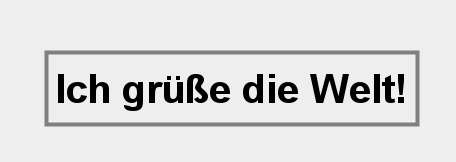
Our task now is to display a string precisely centered on a canvas, regardless of the canvas's size. To do this, we need a class called `FontMetrics` , which allows us to calculate the string's size. It's also important to note that the `drawString` method of `Graphics` always outputs strings at the baseline. Therefore, we need to add the ascent to the string's top-left corner. We'll simply modify the `MyCanvas` class to output a string exactly in the center.
We also use the Graphics2D class . This is an extension of Graphics . It allows you to smooth the output ( anti-aliasing ), which must be set separately for fonts and graphics. Additionally, line width is now set using strokes .
import java.awt.*;
import javax.swing.*;

class MyCanvas extends Canvas
{
    @Override
    public void paint (Graphics g1)
    {
        Dimension d = getSize();
        int w = d.width, h = d.height;

        Graphics2D g = (Graphics2D) g1;
        g.setRenderingHint(RenderingHints.KEY_TEXT_ANTIALIASING,
                RenderingHints.VALUE_TEXT_ANTIALIAS_ON);
        g.setRenderingHint(RenderingHints.KEY_ANTIALIASING,
                RenderingHints.VALUE_ANTIALIAS_ON);

        g.setFont(new Font("Dialog", Font.BOLD, 40));
        FontMetrics metrics = g.getFontMetrics();
        String s = "Greetings to the world!";

        // Calculate string width and height
        int ws = metrics.stringWidth(s);
        int hs = metrics.getHeight();

        // Calculate starting point for string
        int x = (w - ws) / 2;
        int y = (h - hs) / 2 + metrics.getAscent();

        // Draw a rectangle
        g.setColor(Color.gray);
        g.setStroke(new BasicStroke(4));
        g.drawRect((w - ws) / 2 - 10, (h - hs) / 2 - 10, ws + 20, hs + 20);

        // Draw string
        g.setColor(Color.black);
        g.drawString(s, x, y);
    }

}

class TestFrame extends JFrame
{
    public TestFrame()
    {
        super("Test Frame");
        setDefaultCloseOperation(JFrame.EXIT_ON_CLOSE);
        add(new MyCanvas());
    }

}

public class Test
{
    public static void main (String args[])
    {
        JFrame F = new TestFrame();
        F.setSize(600, 600);
        F.setLocationRelativeTo(null);
        F.setVisible(true);
    }
}